Any Pen that is a Template can bet set as a users Default Template. A Default Template is what loads in the editor automatically without having to choose anything.
Say you prefer using the Classic Block and like to have your JavaScript files already set-up to use React because that’s what you use the most. Here’s an example Pen that has the Prettier and Stylelint blocks already added and imports a starter stylesheet. You could make that your Default Template.
To set your Default Template, you open Pen Settings to the Template area and click the Make Default Template button.

You’ll have to confirm this, as you might be replacing an existing Default Template if you’ve already used this feature.
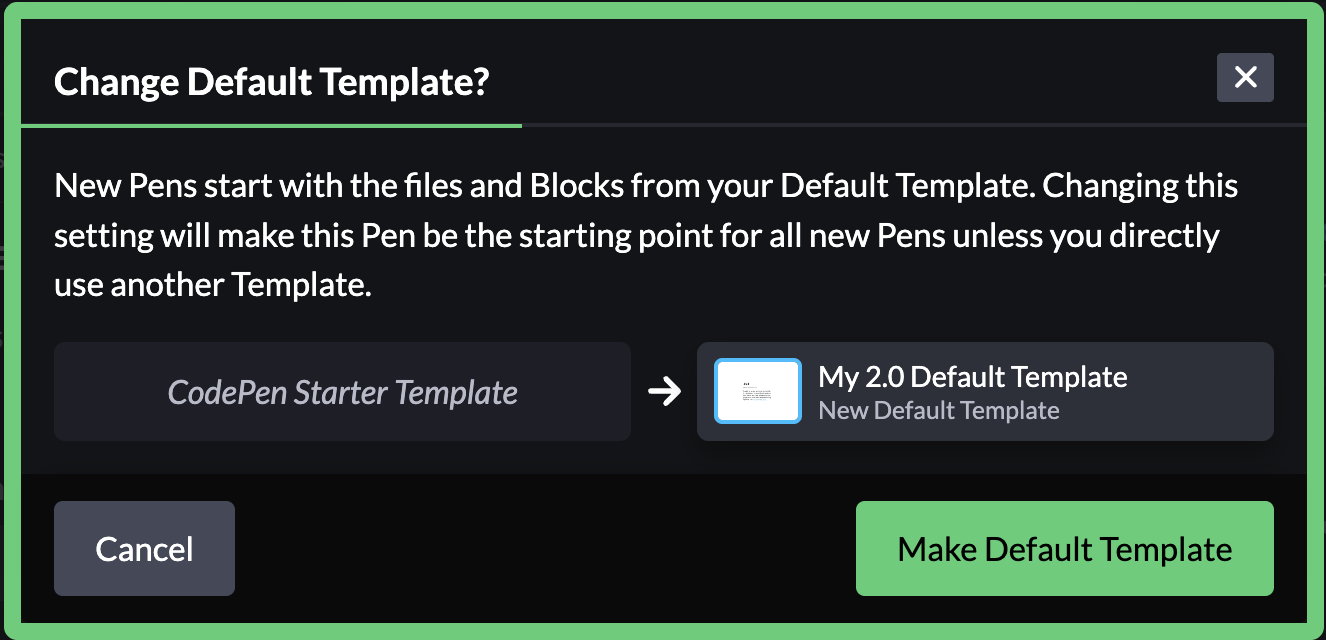
You can use any Pen that is a Template to be your Default Template, you don’t have to own it. But if you choose a Pen you don’t own, it also means that you can’t control when it’s changed (your default will change with it) or deleted (you’ll revert to the CodePen Default Pen).
If you use your own Pen as a Default Pen, you’ll have more control. You’ll also be extra-warned when deleting a Pen that is your Default Pen.