
Modern web development sometimes depends on third-party code. On the front end, that often happens through the npm package registry. CodePen can help you use them.
Packages can be used in two ways:
- Client-side packages: used by the browser directly.
- Build-time packages: used during processing by the CodePen Compiler and Blocks.
The package.json file
Both types of package usage are managed by the package.json file at the root of your Pen.
Client-side packages are those listed in dependencies while build-time packages are those listed in devDependencies. Here’s an example:
{
  "dependencies": {
    "lodash": "^4.18.1",
    "lodash-es": "^4.18.1",
    "zod": "^4.6.7",
    "geojson": "^0.5.0"
  },
  "devDependencies": {
    "@types/geojson": "7946.0",
    "@types/lodash": "4.17.27",
    "@types/lodash-es": "4.17.12",
    "zod": "4.6.7"
  }
}Code language: JSON / JSON with Comments (json)
CodePen manages those for you: import a package by name in a module script and it is added and served automatically.
CodePen Helps Automatically Add Packages
Both client-side and build-time packages are automatically added to your package.json when the CodePen Compiler deems them necessary, because you have code that is importing them.
If you delete a package from your package.json that the CodePen Compiler finds necessary, you may see it be automatically added back. You’re still free to change version numbers there; those won’t be automatically changed.
Client-side packages in your own <script type="importmap"> will not be automatically added to the package.json as the CodePen Compiler assumes you’re handling it yourself.
Example
This TypeScript code will import both the client-side library and the build-time types for you:
// canvas-confetti ships no types of its own — they come from @types/canvas-confetti
import confetti, { type Options } from "canvas-confetti";

const burst: Options = {
  particleCount: 150,
  spread: 90,
  // color: "red", // ❌ TS error: 'color' does not exist in type 'Options'
};

document.addEventListener("click", () => confetti(burst));
document.body.textContent = "Click anywhere 🎉";Code language: TypeScript (typescript)
Package Search

Package Search is within the Assets Modal. To open it, you’ve got choices:
- Click the in the sidebar
- Run the “Open Package Search” command in the Omnibar
Inside the Assets Modal is a tab for Packages, where you can search for packages and libraries.
The Packages Search is a live index of everything on npm, powered by the jsDeliver API. In the search results, we offer copy-and-pasteable code to use the package.
- We’ll always offer the
<script>source URL. - If the package is ESM compatible, we’ll offer the
importcode. - If the package includes CSS, we’ll offer a
<link>for HTML or@importfor CSS to use the main stylesheet.
Using CDNs Directly
Package search, by default, suggests using the bare module specifier, which will make your npm packages work via the import maps feature shown above. But you’re free to link to assets anywhere, including CDNs built for doing this, if you wish.
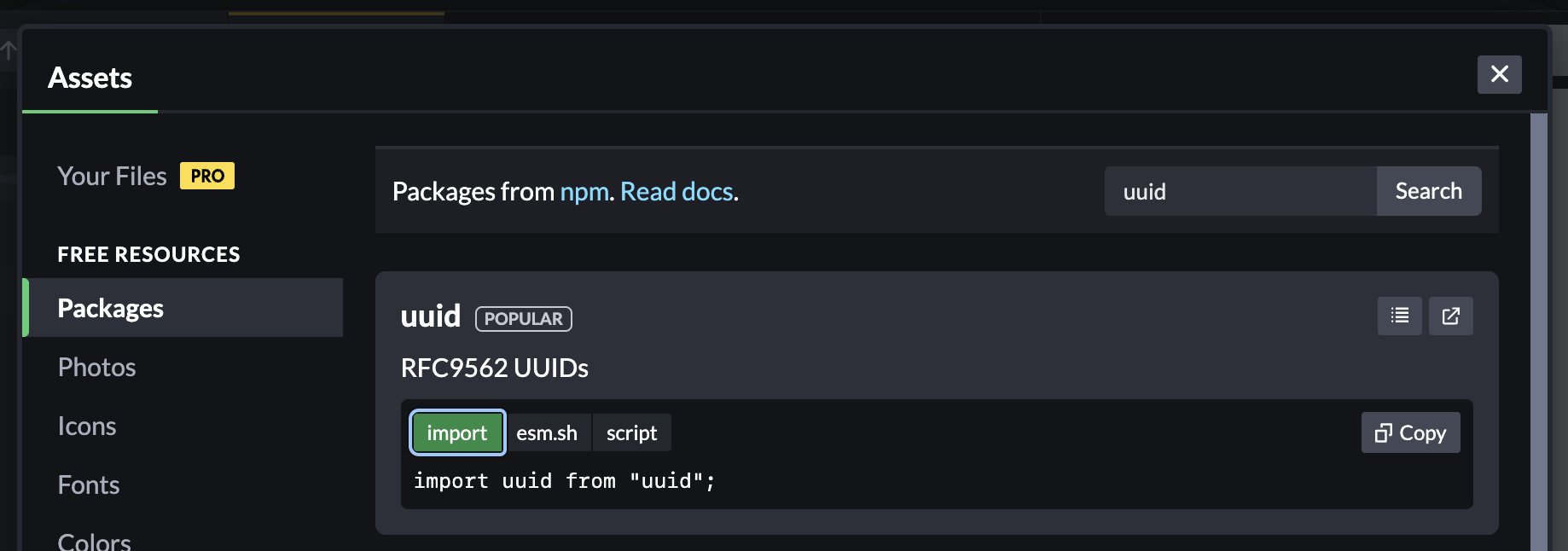
The search results area offers a couple of copy-and-paste options for you.
/* CodePen will make work via Import Maps */
import React from "react";

/* Use package from esm.sh */
import uuid from "https://esm.sh/uuid@11.1.0";

/* Use as script via jsDelivr */
<script src="https://cdn.jsdelivr.net/npm/uuid@11.1.0/dist/cjs-browser/index.min.js"></script>Code language: JavaScript (javascript)
If the package happens to have a main CSS file, that will be offered as well. For example, searching for “reset” is likely to turn up Eric Meyer’s reset CSS and be available under a CSS tab in a format that CSS files can use like:
@import "https://cdn.jsdelivr.net/npm/reset-css@5.0.2/reset.min.css";Code language: CSS (css)Others include UNPKG and CDNjs.